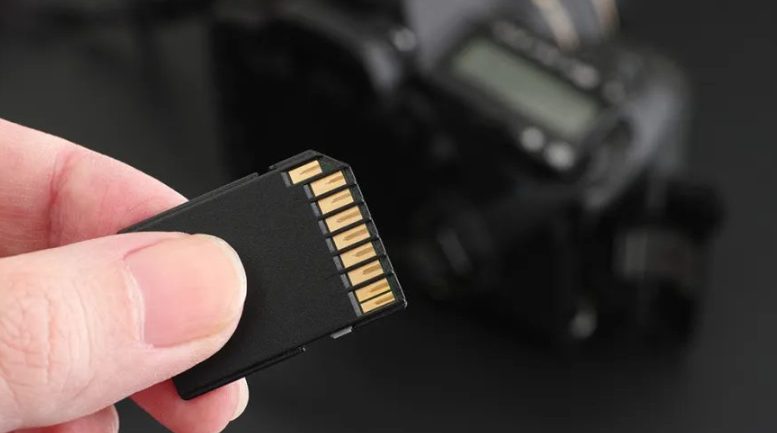
How to Format Any SD Card to FAT32 (Windows & Mac): A Comprehensive Guide for Gaming News
In the world of technology, particularly for gamers and tech enthusiasts, compatibility is paramount. One of the most common hurdles encountered is the inability to format an SD card to the FAT32 file system, especially when dealing with cards larger than 32GB. This limitation can be incredibly frustrating, preventing you from using your storage devices with a wide array of hardware, from older gaming consoles and cameras to embedded systems and some portable media players. At Gaming News, we understand the importance of ensuring your devices work seamlessly together, and we’re here to provide you with the definitive guide on how to format any SD card to FAT32, regardless of its size, on both Windows and Mac operating systems.
We’ve meticulously researched the leading resources on this topic to bring you a solution that not only works but also provides the in-depth understanding needed to tackle any formatting challenge. Forget the limitations imposed by built-in tools; this guide will empower you to format larger SD cards to FAT32, unlocking their full potential for a multitude of applications.
Understanding the FAT32 Formatting Limitation
Before we delve into the “how,” it’s crucial to understand the “why” behind the common formatting issue. By default, Windows operating systems, including Windows 10 and 11, impose a 32GB limit when formatting drives using the graphical user interface (GUI). This means that if you try to format an SD card that is 64GB, 128GB, or even larger directly through File Explorer or Disk Management, you will find that the FAT32 option is not available.
This limitation is not inherent to the FAT32 file system itself, but rather a design choice by Microsoft in their formatting utilities. FAT32, while widely compatible, is an older file system with inherent limitations, such as a maximum individual file size of 4GB. However, its broad compatibility across devices often outweighs this limitation for many users. The 32GB partition size limit in Windows’ built-in tools is a practical consideration, but one that can be easily overcome with the right methods.
Why is FAT32 Still Relevant?
Despite its age and limitations, FAT32 remains an incredibly relevant file system for several key reasons:
- Universal Compatibility: This is the primary reason. Many older devices, embedded systems, gaming consoles (like the Nintendo Switch for some storage needs, older PlayStation models, and even some retro gaming setups), car stereos, digital cameras, and even some USB flash drives are designed to work exclusively or optimally with FAT32.
- Simplicity: It’s a straightforward file system that requires minimal overhead, making it efficient for smaller devices and storage media.
- Bootable Media: FAT32 is often the preferred file system for creating bootable USB drives for installing operating systems or running diagnostic tools.
When you’re trying to get your microSD card or SD card to work with a device that specifically calls for FAT32, and it’s larger than 32GB, the built-in Windows formatter will lead you to a dead end. Fortunately, there are robust solutions.
Formatting SD Cards Larger Than 32GB to FAT32 on Windows
For Windows users facing the 32GB FAT32 formatting barrier, the solution lies in employing more powerful, command-line driven tools or third-party formatting utilities. We will explore both methods to ensure you have all the options at your disposal.
Method 1: Using Command Prompt (diskpart)
The Command Prompt in Windows, specifically using the diskpart utility, is a built-in and highly effective tool for overcoming the 32GB FAT32 limitation. This method requires a bit more technical precision, but it’s free and powerful.
Steps to Format with diskpart:
- Connect Your SD Card: Insert your SD card into your computer using an appropriate card reader. Ensure it is recognized by Windows.
- Open Command Prompt as Administrator:
- Click the Start button.
- Type
cmdin the search bar. - Right-click on Command Prompt in the search results.
- Select Run as administrator. This is crucial for granting the necessary permissions.
- Launch diskpart: In the Command Prompt window, type
diskpartand press Enter. You should see a new promptDISKPART>. - List Disks: Type
list diskand press Enter. This command will display all the storage devices connected to your computer. Carefully identify your SD card based on its size. It’s extremely important to select the correct disk to avoid accidental data loss on other drives. Look for the disk number that corresponds to your SD card. - Select Your SD Card: Once you’ve identified your SD card’s disk number (e.g., Disk 3), type
select disk X(replaceXwith the correct disk number) and press Enter. The system will confirm that the disk is now selected. - Clean the Disk: This step will erase all data and partitions on the selected SD card. Type
cleanand press Enter. This prepares the card for re-partitioning. - Create a Primary Partition: Type
create partition primaryand press Enter. This command creates a new, primary partition on the cleaned disk. - Select the Partition: Type
select partition 1and press Enter. Since we just created one partition, it will be partition 1. - Format the Partition: This is where we specify FAT32. Type
format fs=fat32 quickand press Enter.fs=fat32specifies the file system.quickperforms a quick format, which is generally sufficient and much faster. If you suspect issues with the card, you can omitquickfor a full format, but it will take significantly longer.
- Assign a Drive Letter (Optional but Recommended): Type
assignand press Enter. This will automatically assign a drive letter to your SD card, making it accessible in File Explorer. - Exit diskpart: Type
exitand press Enter to leave the diskpart utility. - Close Command Prompt: Type
exitagain or click the close button to close the Command Prompt window.
Your SD card should now be formatted as FAT32 and usable with devices that require this file system, regardless of its original size.
Important Considerations for diskpart:
- Data Loss: The
cleancommand is destructive. Ensure you have backed up any important data from your SD card before proceeding. - Correct Disk Selection: Double-check and triple-check that you have selected the correct disk number. Formatting the wrong disk will lead to irreversible data loss.
- File System Limitations: Remember that FAT32 has a 4GB individual file size limit. If you need to store files larger than this, FAT32 is not the appropriate file system.
Method 2: Using Third-Party Formatting Tools
If the Command Prompt method seems daunting, or if you prefer a more user-friendly graphical interface, several excellent third-party SD card formatting tools can help you format any SD card to FAT32 on Windows. These tools are specifically designed to bypass the Windows built-in limitations.
Rufus
Rufus is a popular, free, and open-source utility that is incredibly versatile for creating bootable USB drives and formatting storage media. It’s a go-to tool for many tech-savvy users.
Steps to Format with Rufus:
- Download Rufus: Visit the official Rufus website and download the latest portable version (no installation required).
- Connect Your SD Card: Insert your SD card into your computer.
- Launch Rufus: Run the downloaded Rufus executable.
- Select Your Device: In the Rufus window, under Device, select your SD card from the dropdown menu. Again, verify it’s the correct device by its name and size.
- Boot Selection: For standard formatting, leave this as “Non bootable” unless you are intentionally creating a bootable drive.
- Partition Scheme and Target System: You can typically leave these as default, but if you encounter issues, try selecting MBR as the partition scheme and BIOS or UEFI as the target system.
- Volume Label: You can enter a name for your SD card (e.g., “GAMING_STORAGE”).
- File System: Crucially, select FAT32 (Default) from the File system dropdown menu. Rufus will allow you to choose FAT32 even for large drives.
- Cluster Size: Leave this at the default setting unless you have a specific reason to change it.
- Format Options: Ensure “Quick format” is checked for faster operation.
- Start Formatting: Click the START button. Rufus will warn you that all data on the selected device will be destroyed. Click OK to proceed.
Rufus will then proceed to format your SD card to FAT32, often much faster and more reliably than built-in tools for larger drives.
SD Card Formatter
The SD Card Formatter, developed by the SD Association, is another excellent and reliable tool specifically designed for formatting SD, SDHC, and SDXC memory cards. It’s known for its ability to properly format cards and recover them if they become corrupted.
Steps to Format with SD Card Formatter:
- Download SD Card Formatter: Download the official SD Card Formatter from the SD Association website. Install it on your Windows computer.
- Connect Your SD Card: Insert your SD card into your computer.
- Launch SD Card Formatter: Open the application.
- Select Your Card: Under Select card, choose your SD card. Ensure it’s the correct one.
- Select Format Type: Click on Format type. You will have two options:
- Quick format: This is usually sufficient.
- Overwrite format: This performs a secure erase and takes much longer.
- Choose File System: Click on Format. The default option is usually FAT32 for most cards. If it defaults to exFAT and you need FAT32, you might need to repartition first using Disk Management or diskpart to create a partition that the formatter can then format as FAT32. However, typically, SD Card Formatter should allow you to select FAT32.
- Start Formatting: Click the Format button. Confirm the warning about data erasure by clicking Yes.
SD Card Formatter is a straightforward and safe option, especially recommended by the manufacturers of SD cards themselves.
Formatting SD Cards to FAT32 on Mac
Mac users also encounter similar limitations when trying to format larger SD cards to FAT32 using the built-in Disk Utility. Fortunately, macOS provides its own powerful tools to achieve this.
Method 1: Using Disk Utility
macOS’s Disk Utility is a robust application capable of formatting drives. While it can sometimes be less intuitive than its Windows counterpart, it is perfectly capable of formatting larger SD cards to FAT32.
Steps to Format with Disk Utility:
- Connect Your SD Card: Insert your SD card into your Mac using an SD card reader.
- Open Disk Utility:
- Open Finder.
- Go to Applications > Utilities > Disk Utility.
- Show All Devices: In the Disk Utility window, click on the View button in the top-left corner and select Show All Devices. This is crucial for seeing the physical drive and not just the volumes.
- Select Your SD Card: In the left-hand sidebar, under the “External” or “Physical” section, select the top-level entry for your SD card (not any indented volumes). This is essential for ensuring you’re formatting the entire card.
- Erase the Card: Click the Erase button in the toolbar at the top of the Disk Utility window.
- Configure Erase Options:
- Name: Give your SD card a desired name (e.g., “GAMING_DATA”).
- Format: This is the most important step. Select MS-DOS (FAT). This is macOS’s designation for the FAT32 file system.
- Scheme: Select Master Boot Record (MBR). While GUID Partition Map (GPT) is common for newer drives, MBR is generally more compatible with devices that require FAT32.
- Perform the Erase: Click the Erase button. Disk Utility will warn you that all data will be lost. Confirm by clicking Erase again.
Once the process is complete, your SD card will be formatted to FAT32 (MS-DOS FAT) with an MBR partition scheme, ready for use with a wide range of devices.
Troubleshooting Disk Utility:
- “Couldn’t unmount disk” error: If you encounter this, try closing all applications that might be accessing the SD card, including Finder windows that might have the card open. You can also try restarting your Mac.
- Format Option Grayed Out: Ensure you have selected the top-level device, not an indented volume, and that “Show All Devices” is enabled.
Method 2: Using Terminal (for Advanced Users)
Similar to Windows, macOS also has a powerful command-line interface, Terminal, that can be used for formatting. This method offers more control but requires careful execution.
Steps to Format with Terminal:
- Connect Your SD Card: Insert your SD card into your Mac.
- Open Terminal: Go to Applications > Utilities > Terminal.
- Identify Your SD Card: Type
diskutil listand press Enter. This will display a list of all disks connected to your Mac. Carefully identify your SD card by its size and name (if it has one). Note its identifier, which will look something like/dev/diskX(e.g.,/dev/disk2). It is crucial to select the correct disk. - Unmount the Disk: Before formatting, you need to unmount the disk. Type
diskutil unmountDisk /dev/diskX(replaceXwith your SD card’s disk number) and press Enter. - Format the Disk: Now, use the
newfs_msdoscommand. Typesudo newfs_msdos -F 32 /dev/diskXand press Enter.sudois used to run the command with administrator privileges. You will be prompted for your Mac’s password.newfs_msdosis the command to create a FAT32 file system.-F 32specifies that you want to format it as FAT32./dev/diskXis the identifier for your SD card.
- Confirm and Complete: The command will run. If successful, you will see output indicating the formatting process. The disk will be reformatted to FAT32.
Crucial Warnings for Terminal Usage:
- Extreme Caution: Using
sudowith disk commands carries a high risk of data loss if the wrong disk identifier is used. Verify your disk identifier meticulously. - No Undo: Once formatted, data is irrecoverable.
Common Use Cases for FAT32 Formatted SD Cards
Formatting your SD card to FAT32 unlocks a world of possibilities, especially in the gaming and retro-tech communities:
- Retro Gaming Consoles: Many popular retro gaming consoles or emulation devices require SD cards formatted as FAT32 for storing ROMs and game saves.
- Nintendo Switch Homebrew: While the Switch supports exFAT, FAT32 is often preferred or even required for certain homebrew applications and firmware modifications.
- Dashcams and Security Cameras: Older or more basic dashcam models and some security cameras rely on FAT32 for video recording.
- Car Stereos and Media Players: Many car infotainment systems and portable media players are designed to read music, videos, and other media from FAT32 formatted USB drives and SD cards.
- Embedded Systems and Microcontrollers: Development boards and embedded systems often utilize FAT32 for storage and data logging due to its broad support.
- Universal Bootable Media: Creating bootable USB drives for various operating systems or diagnostic tools is often best done using FAT32 for maximum compatibility.
When FAT32 Might Not Be the Best Choice
While FAT32 is incredibly useful, it’s important to recognize its limitations and when an alternative file system might be more suitable:
- Large Individual Files: As mentioned, FAT32 cannot store individual files larger than 4GB. If you plan to store large video files, disk images, or other substantial data, you will need to use exFAT (which supports much larger files and partitions, and is well-supported by modern devices, including newer versions of Windows, macOS, and many cameras) or NTFS (primarily for Windows systems).
- Performance on Large Drives: For very large SD cards (e.g., 1TB and above), FAT32’s performance can degrade. exFAT or NTFS might offer better performance in such scenarios.
- Operating System Drives: FAT32 is not suitable for modern operating system installations.
Conclusion: Mastering SD Card Formatting for Your Needs
The ability to format any SD card to FAT32, regardless of its size, is an essential skill for anyone working with a diverse range of electronic devices. Whether you’re a gamer expanding your retro library, a photographer using older camera equipment, or a developer working with embedded systems, understanding these formatting techniques ensures your storage media works precisely as you need it to.
At Gaming News, we are committed to providing you with the most effective and up-to-date information. By leveraging the power of diskpart on Windows or Terminal and Disk Utility on Mac, you can confidently overcome the 32GB FAT32 formatting barrier. Remember to always back up your data before formatting and to carefully select the correct drive to avoid accidental data loss. With these methods, your SD cards will be fully compatible with the devices that matter most to you.