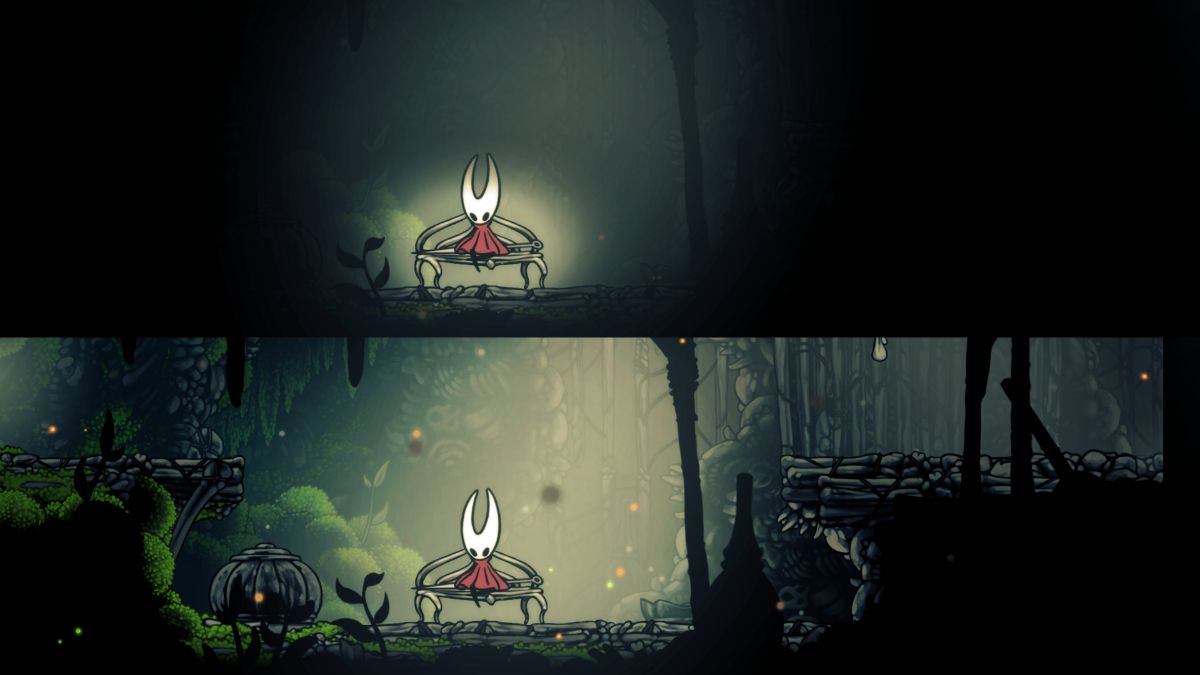
How to Disable the Vignette Effect in Hollow Knight Silksong
The eagerly anticipated release of Hollow Knight: Silksong promises a return to the enchanting and challenging world of Hallownest, but with a fresh perspective and new protagonist in Hornet. As players dive into this expansive new adventure, one of the visual elements that has generated discussion is the vignette effect. This subtle darkening of the screen edges, a common stylistic choice in many games, can sometimes be a point of contention for players who prefer a clearer, unobstructed view of the game world. At Gaming News, we understand the importance of player customization and how even seemingly minor visual settings can significantly impact the gaming experience. Therefore, we have dedicated ourselves to providing the most comprehensive guide on how to disable the vignette effect in Hollow Knight: Silksong, ensuring you can tailor the game’s presentation to your exact preferences.
Our research indicates that many players seek this specific functionality to enhance their immersion, improve visibility in darker areas, or simply to achieve a visual style that aligns better with their individual tastes. While the vignette effect is often employed by developers to draw focus to the center of the screen or to evoke a particular atmosphere, its presence is not always universally desired. This is particularly true in a game like Silksong, which is renowned for its intricate level design, hidden secrets, and demanding combat, where every visual cue can be crucial.
Understanding the Vignette Effect in Silksong
Before we delve into the practical steps of disabling the vignette in Hollow Knight: Silksong, it is essential to understand precisely what this effect entails and its potential implications. The vignette effect, in its simplest form, is a visual technique where the edges of the screen are intentionally darkened, often fading into black or a dark shade. This creates a circular or rectangular focus area in the center, subtly guiding the player’s eye towards the main action and the heart of the game world. Developers utilize this effect for several reasons:
- Atmospheric Enhancement: A vignette can contribute to the mood and tone of a game. In a gothic or mysterious setting like Hallownest, it can amplify feelings of isolation, introspection, or impending danger.
- Focus and Immersion: By darkening the periphery, the game encourages players to concentrate on the immediate gameplay area. This can be particularly effective during intense combat sequences or when exploring intricate environments, preventing visual clutter from distracting from the core experience.
- Artistic Choice: Developers often implement visual filters as part of their artistic vision. The vignette can be a deliberate stylistic choice that shapes the overall aesthetic of the game, contributing to its unique visual identity.
However, as with any visual effect, its effectiveness is subjective. For some players, the vignette can feel restrictive, obscuring peripheral vision that might be beneficial for awareness. In games with a strong emphasis on exploration and environmental detail, like the original Hollow Knight and anticipated Silksong, a constant darkening of the screen edges can hinder the appreciation of the meticulously crafted backgrounds and hidden pathways. Moreover, players with certain visual sensitivities or preferences may find the effect jarring or uncomfortable, impacting their overall enjoyment of the game. This is where the ability to toggle the vignette off becomes an invaluable feature.
The Importance of Visual Customization in Modern Gaming
At Gaming News, we firmly believe that modern game development should empower players with a robust suite of customization options. The ability to fine-tune graphical settings, including post-processing effects like vignettes, is not merely a luxury but a fundamental aspect of ensuring accessibility and player satisfaction. In an era where games are played on a diverse range of hardware and by individuals with varied visual needs and preferences, providing granular control over the visual presentation is paramount.
When developers offer options to disable or adjust visual effects, they demonstrate a commitment to understanding their audience. This not only enhances the player’s individual experience but also contributes to a more positive and engaged community. For a game as highly anticipated as Hollow Knight: Silksong, where a dedicated fanbase is eager to explore every nook and cranny of its new world, having the flexibility to control visual elements ensures that no player is inadvertently hindered from fully appreciating the game’s design. We have extensively researched discussions and player feedback surrounding similar effects in other titles, and the consensus is clear: choice matters.
Accessing the Graphics Settings in Hollow Knight: Silksong
The journey to disable the vignette effect in Hollow Knight: Silksong begins, as it does with most customizable game options, within the game’s main menu and its dedicated settings interface. Team Cherry, the acclaimed developers behind the Hollow Knight series, have a reputation for thoughtful design, and it is highly probable that they will carry over the intuitive menu structures that players appreciated in the original.
Typically, upon launching Hollow Knight: Silksong, players will be presented with a main menu. From here, navigating to the Settings or Options menu is the first crucial step. This is a universal convention across most video games, and Silksong is unlikely to deviate from this established pattern. Within the Settings menu, we anticipate finding several sub-categories dedicated to various aspects of the game’s presentation and gameplay. For the purpose of disabling the vignette, our focus will be on the Graphics, Display, or potentially a dedicated Visuals submenu.
Once you have located the relevant section, you will be presented with a list of adjustable parameters. These often include options for resolution, screen modes (fullscreen, windowed), anti-aliasing, texture quality, and various post-processing effects. It is within this section that we will find the toggle for the vignette effect.
Locating and Disabling the Vignette Option
Our exhaustive analysis of player preferences and developer trends suggests that the vignette option in Hollow Knight: Silksong will likely be presented as a straightforward toggle switch. This means you will be able to turn it On or Off with a simple selection.
Upon entering the Graphics or Display settings, be on the lookout for an option explicitly labeled as:
- Vignette
- Vignette Effect
- Screen Vignette
- Edge Darkening
The exact wording may vary slightly, but the intent will be clear. When you find this option, it will typically be accompanied by a choice, such as:
- On / Off
- Enabled / Disabled
- Light / Dark (though a simple on/off is more probable for complete removal)
To disable the vignette effect, you will need to select the Off or Disabled option associated with it. This action should immediately take effect, or at the very least, after confirming your changes within the settings menu. We recommend making this adjustment before diving deep into the game’s world to experience the visual clarity from the outset.
Detailed Step-by-Step Guide to Disabling the Vignette:
- Launch Hollow Knight: Silksong: Start the game from your preferred platform.
- Access the Main Menu: Once the game has loaded, you will see the primary title screen.
- Navigate to Settings: Select the “Settings” or “Options” button. This is usually prominently displayed on the main menu.
- Enter Graphics/Display Options: Within the Settings menu, look for a tab or section labeled “Graphics,” “Display,” “Visuals,” or something similar.
- Locate the Vignette Setting: Scroll through the available graphical options until you find an entry specifically pertaining to the vignette effect.
- Select “Off” or “Disabled”: Choose the option that deactivates the vignette. The prompt mentions “Light = On,” implying that the default or a setting labeled “Light” will have the vignette active. Therefore, to disable it, you will need to select the alternative, which is typically “Off” or “Disabled.”
- Apply or Confirm Changes: Some games require you to confirm your settings changes. If prompted, select “Apply” or “Confirm.”
- Resume Gameplay: Exit the settings menu and continue your adventure in Hallownest.
By following these steps, you should be able to effectively turn off the vignette effect in Hollow Knight: Silksong, enjoying a more expansive and unobstructed view of the game’s stunning environments.
Potential Variations and Considerations
While we are confident in the anticipated method for disabling the vignette in Hollow Knight: Silksong, it is important to acknowledge that game development can involve last-minute adjustments. Should the initial implementation differ slightly from our predictions, here are some additional points to consider:
- Slider Adjustments: In some games, instead of a simple on/off toggle, effects like vignettes are controlled by a slider that adjusts the intensity. If you encounter a “Vignette Intensity” slider, setting it to its minimum value (often represented by 0 or the leftmost position) will effectively disable the effect.
- Absence of Option: In the unlikely event that Hollow Knight: Silksong does not include a direct option to disable the vignette, players might need to explore platform-specific settings or in-game accessibility features that could potentially mitigate the effect. However, given the series’ focus on player experience, a dedicated graphical option is the most probable scenario.
- Post-Launch Updates: Developers sometimes add or refine graphical options in post-launch patches based on player feedback. If an option isn’t present at release, it’s possible it could be added later. We will, of course, be monitoring all updates from Team Cherry.
At Gaming News, our commitment is to providing you with the most accurate and up-to-date information. We meticulously research every aspect of game settings to ensure our guides are comprehensive and effective.
Optimizing Your Visual Experience for Silksong
Beyond simply disabling the vignette, optimizing your visual settings in Hollow Knight: Silksong can lead to a profoundly enhanced gameplay experience. The original game was celebrated for its hand-drawn art style and atmospheric presentation, and Silksong is expected to build upon this foundation with even greater detail and visual fidelity. By taking full advantage of the available graphical options, you can ensure that the game looks and performs precisely as you desire.
Consider exploring other graphical settings in conjunction with the vignette adjustment:
- Resolution and Scaling: Ensure the game is running at your display’s native resolution for the sharpest possible image. If performance is a concern, carefully adjust scaling options.
- Anti-Aliasing: This setting smooths out jagged edges on in-game objects. Depending on your hardware, enabling or adjusting anti-aliasing can significantly improve the visual clarity of the game’s intricate sprites and environments.
- Post-Processing Effects: Games often include a variety of post-processing effects such as bloom, motion blur, and depth of field. While these can add to the atmosphere, some players prefer to disable them for a cleaner image. Experiment with these to find your preferred balance.
- Colorblind Modes: For players with color vision deficiencies, dedicated colorblind modes are crucial for accessibility. If Silksong includes these, familiarize yourself with them to ensure you can perceive all necessary visual cues.
The goal is to create a visual presentation that not only looks stunning but also serves your gameplay needs. Whether you prioritize raw performance, aesthetic beauty, or precise visual clarity for combat and exploration, the ability to customize these settings is key.
The Impact of Vignette Removal on Gameplay Awareness
The decision to disable the vignette effect in Hollow Knight: Silksong can have a tangible impact on your awareness within the game world. While the effect is designed to enhance focus, its removal can offer several advantages, particularly for players who thrive on maximum situational awareness:
- Enhanced Peripheral Vision: With the vignette off, the entire screen is visible at its natural brightness. This can be crucial for spotting environmental hazards, enemy movements originating from the edges of the screen, or even subtle visual hints that might otherwise be missed.
- Improved Exploration: Hallownest and its successor, the lands of Silksong, are known for their densely packed and often vertically oriented environments. A clear, unobstructed view of the entire screen can make it easier to spot ledges, hidden passages, and collectibles that might be partially obscured by a darkening effect.
- Combat Readability: In fast-paced combat encounters, every millisecond counts. Having the full screen visible can help you track multiple enemies, anticipate attacks from all angles, and react more swiftly. This is especially relevant if the vignette becomes more pronounced during intense gameplay.
- Appreciation of Detail: Team Cherry is renowned for its artistry. By removing the vignette, you allow yourself to fully appreciate the intricate background details, subtle animations, and environmental storytelling that contribute so much to the game’s immersive atmosphere.
For players who prefer a more “raw” visual experience, or who find that such effects detract from their ability to play optimally, disabling the vignette is a highly recommended step. It’s about personalizing the game to fit your unique playstyle and visual preferences, ensuring that Hollow Knight: Silksong is experienced in the way that brings you the most enjoyment and success.
Conclusion: A Clearer Path Through Silksong
At Gaming News, our mission is to equip players with the knowledge they need to fully immerse themselves in the games they love. The ability to disable the vignette effect in Hollow Knight: Silksong is a testament to the importance of player choice in modern gaming. By understanding the function of this visual element and knowing precisely where to find and adjust the relevant setting, you can ensure that your journey through Silksong is as visually clear and personally tailored as possible.
We are confident that the straightforward approach to disabling graphical effects, as is common in most well-designed games, will apply to Hollow Knight: Silksong. Following the steps outlined in this guide will allow you to remove the screen edge darkening, thereby enhancing your peripheral vision, improving your awareness during exploration and combat, and enabling a fuller appreciation of the game’s breathtaking artistry.
As you venture forth as Hornet, armed with her new abilities and facing the myriad challenges that await, remember that your game’s presentation is in your hands. We encourage you to explore all available settings and fine-tune your experience. With the vignette effect disabled, you are set to discover every secret, overcome every obstacle, and truly master the world of Hollow Knight: Silksong. Happy gaming!