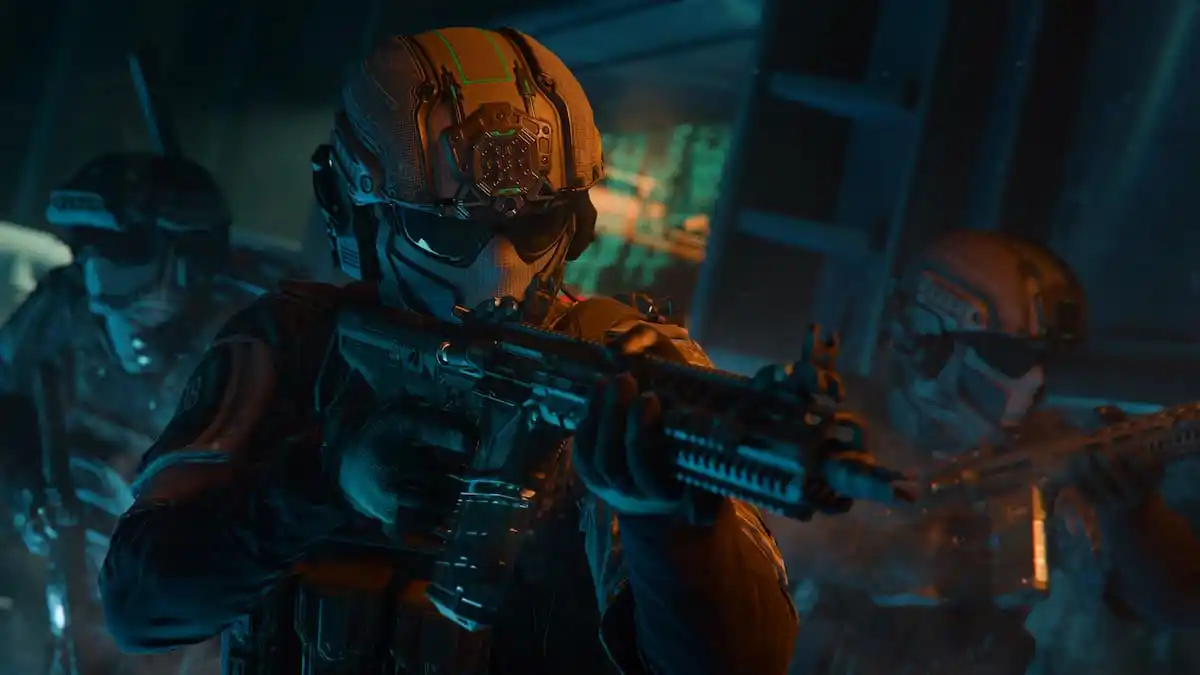
Best Black Ops 7 Graphics Settings for Less Lag and Max FPS
Black Ops 7 is here, and for PC gamers, that means diving deep into the graphics settings to achieve the perfect balance between visual fidelity and smooth performance. Lag and low FPS can ruin the experience, turning intense firefights into frustrating stutters. We’ve meticulously tested and analyzed various settings to provide you with the optimal configuration for enjoying Black Ops 7 with minimal lag and maximum FPS. This guide will cover everything from basic tweaks to advanced settings, ensuring you get the most out of your hardware.
Essential Tips and Tricks for Smooth Graphics in Black Ops 7
Before diving into the specific settings, let’s cover some fundamental tips and tricks that can significantly improve your game’s performance. Overlooking these basics can leave performance on the table, regardless of how fine-tuned your in-game settings are.
Prioritize Driver Updates: Your First Line of Defense
Outdated graphics drivers are a common culprit behind performance issues. Game developers optimize their titles to work best with the latest drivers, and failing to update can lead to compatibility problems, graphical glitches, and reduced FPS.
- Identify Your Graphics Card: Determine whether you have an NVIDIA or AMD graphics card.
- Download the Latest Drivers: Visit the NVIDIA or AMD website to download the latest drivers specifically designed for Black Ops 7. Both NVIDIA and AMD frequently release “Game Ready” drivers that are specifically optimized for new game releases.
- Clean Installation: When installing the new drivers, opt for a clean installation. This removes any remnants of previous drivers that could cause conflicts. This will ensure that you get a clean slate, with no interference from old driver files.
- Regular Check-ups: Make it a habit to check for driver updates regularly. Both NVIDIA and AMD have their respective applications that you can install to automatically notify you of any available driver updates.
Frame Rate Limiting: Stabilizing Performance
While pushing for the highest possible FPS might seem appealing, it can sometimes lead to inconsistent performance and stuttering, especially on mid-range systems. Capping your FPS can stabilize performance and reduce strain on your hardware, leading to a smoother overall experience.
- Assess Your Hardware: Determine the maximum stable FPS your system can consistently achieve in Black Ops 7.
- Cap Your FPS: Use the in-game settings or a third-party tool like RivaTuner Statistics Server (RTSS) to cap your FPS slightly below your system’s maximum. A good starting point is 60 FPS or 90 FPS, depending on your monitor’s refresh rate and the capabilities of your hardware.
- Consider Adaptive Sync: If your monitor supports NVIDIA G-Sync or AMD FreeSync, enable it to further smooth out performance and eliminate screen tearing. These technologies dynamically adjust your monitor’s refresh rate to match your GPU’s output, resulting in a smoother and more responsive gaming experience.
Shader Pre-Loading: Minimizing In-Game Stutters
Black Ops 7, like many modern games, uses shaders to render complex visual effects. Compiling these shaders can be a resource-intensive process, and doing it on the fly during gameplay can lead to noticeable stutters. Pre-loading shaders before you start playing ensures that these calculations are done in advance, resulting in a smoother in-game experience.
- Locate Shader Pre-Loading Option: Look for the shader pre-loading option in the game’s graphics settings.
- Initiate Shader Compilation: Start the shader compilation process and allow it to complete fully. This may take some time, but it’s well worth it for the performance benefits.
- Avoid Interruptions: Ensure your system is stable and doesn’t experience any interruptions during the shader compilation process.
Background Processes: Close Resource-Intensive Applications
It’s good practice to close any unnecessary applications running in the background while playing Black Ops 7. Web browsers, streaming software, and other resource-intensive programs can consume valuable CPU and GPU resources, leading to performance degradation in the game.
- Identify Resource Hogs: Use the Task Manager (Ctrl+Shift+Esc) to identify applications that are consuming a significant amount of CPU, memory, or disk resources.
- Close Unnecessary Applications: Close any applications that you don’t need while playing Black Ops 7.
- Disable Overlays: Disable any in-game overlays from programs like Discord or Steam, as these can sometimes impact performance.
Optimal Black Ops 7 Graphics Settings for Balanced Performance
Now, let’s get into the nitty-gritty of the graphics settings. These settings are designed to provide a good balance between visual quality and performance on a mid-range gaming PC, similar to the Ryzen 5600G with an RTX 3060. Feel free to adjust these settings based on your own hardware and preferences.
Display Settings: Maximizing Responsiveness
These settings directly impact the responsiveness and stability of your game.
- Display: Fullscreen Borderless. This offers the best of both worlds – the immersive experience of fullscreen with the ability to quickly alt-tab to other applications.
- NVIDIA Reflex Low Latency: On. This reduces input lag, making your actions feel more responsive. Essential for competitive play.
- Eco Mode Preset: Custom. Provides the user with complete customization of graphics settings.
- V-Sync (Gameplay): Off. V-Sync introduces input lag, which is detrimental to competitive gaming. Disable it unless you’re experiencing severe screen tearing.
- V-Sync (Menus): 100%. This is useful for users with very powerful PC’s, that use 144Hz or 240Hz monitors, it makes menu browsing and navigation smoother.
- Custom Frame Rate Limit: Custom. Allows you to fine-tune your frame rate limits for different scenarios.
- Gameplay Custom Frame Rate Limit: 120. A good starting point for smooth gameplay. Adjust this based on your system’s capabilities.
- Menu Custom Frame Rate Limit: 60. No need for high FPS in menus. This saves resources.
- Out of Focus Custom Frame Rate Limit: 30. Further reduces resource usage when the game is not the active window.
- Reduce Menu Render Resolution: Optimal. Reduces the rendering resolution of menus to improve performance without sacrificing visual quality in gameplay.
- Pause Game Rendering: Off. Keeps the game rendering even when paused, which can be useful for streaming or recording.
- Reduce Quality When Inactive: Personal preference. This depends on whether you want to prioritize performance or visual fidelity when the game is minimized.
- HDR: Automatic. If your monitor supports HDR, enable it for a more vibrant and immersive visual experience.
Graphics Quality Settings: Striking the Right Balance
These settings have the biggest impact on visual fidelity and performance.
- Graphic Preset: Recommended/Balanced. A good starting point that automatically adjusts settings based on your hardware.
- Dynamic Resolution: Off. Dynamic resolution scaling can cause distracting fluctuations in image quality. It’s best to disable it and manually adjust the settings.
- Upscaling: As applicable. NVIDIA DLSS, AMD FSR, or Intel XeSS can significantly boost performance with minimal visual impact. Experiment with different upscaling technologies and settings to find the best balance for your system.
- Texture Resolution: Low. Texture resolution has a significant impact on VRAM usage. Lowering it can improve performance on systems with limited VRAM.
- Texture Filter Anisotropic: High. Anisotropic filtering sharpens textures at oblique angles. Setting it to high provides a good balance between visual quality and performance.
- Depth of Field: Off. Depth of field can blur the background and make it harder to spot enemies. Disabling it can improve visibility and performance.
- Detail Quality: Normal. A good compromise between visual detail and performance.
- Particle Resolution: Normal. Particle effects can be visually appealing, but they can also impact performance. Setting this to normal provides a good balance.
- Bullet Impacts: On. Adds visual feedback for bullet impacts, which can be helpful for aiming.
- Persistent Effects: On. Keeps visual effects like blood splatters and scorch marks on the environment. This is a matter of personal preference.
- Shader Quality: Medium. Shader quality affects the complexity of lighting and shading effects. Setting it to medium provides a good balance between visual quality and performance.
- On-Demand Texture Streaming: Optimized. Allows the game to stream textures as needed, reducing VRAM usage.
- Local Texture Streaming Quality: Default. Set to the default value for optimal performance.
- Shadow Quality: Low. Shadows can be very resource-intensive. Lowering the quality can significantly improve performance with minimal visual impact.
- Screen Space Shadows: Low. Screen space shadows are another resource-intensive shadow effect. Lowering the quality can further improve performance.
- Occlusion and Screen Space Lighting: Medium. Affects the realism of lighting and shadows. Setting it to medium provides a good balance.
- Screen Space Reflections: Off. Screen space reflections can be visually appealing, but they can also be very resource-intensive. Disabling them can significantly improve performance.
- Static Reflection Quality: High. Static reflections are less resource-intensive than screen space reflections, so you can set this to high without a major performance impact.
- Terrain Quality: Medium. Affects the detail of the terrain. Setting it to medium provides a good balance.
- Volumetric Quality: Medium. Volumetric effects like fog and smoke can be visually appealing, but they can also impact performance. Setting this to medium provides a good balance.
- Deferred Physics Quality: Low. Physics effects can be resource-intensive. Lowering the quality can improve performance, especially in chaotic scenes.
- Weather Grid Volumes Quality: Normal. Affects the detail of weather effects. Setting it to normal provides a good balance.
- Water Quality: Off. Water effects can be resource-intensive. Disabling them can improve performance, especially in areas with a lot of water.
View Settings: Personalizing Your Experience
These settings are largely a matter of personal preference.
- Field of View (FOV): 90. A good starting point for most competitive shooters. Adjust this based on your preference and monitor size. Higher FOV allows you to see more of your surroundings, but it can also reduce performance.
- Motion Blur: Off. Motion blur can make the game feel smoother, but it can also make it harder to track moving targets. Most competitive players disable it.
- Weapon Motion Blur: Off. Same as above, but applies only to weapon movement.
- Film Grain: Off. Film grain adds a grainy effect to the image. This is a matter of personal preference.
Final Thoughts: Fine-Tuning for Your System
These settings are a great starting point for achieving smooth performance in Black Ops 7. However, the optimal configuration will vary depending on your specific hardware and preferences. Experiment with different settings to find the perfect balance between visual quality and performance for your system. Remember to monitor your FPS and temperatures to ensure that your system is running smoothly and not overheating.
By following these tips and tweaking the graphics settings, you can enjoy Black Ops 7 with minimal lag and maximum FPS, giving you a competitive edge and a more enjoyable gaming experience. Good luck, and happy gaming!